
🔁Trigger Automatic Refresh with Slate Loop
This article will outline how to build an automatic retroactive refresh using a Slate Loop to trigger the refresh and allow the rules to fire on the matching records.
This consists of two simple components:
- A query with SFTP export job, and filters that match the rule.
- A source format whose only role is to match to record GUIDs from the query and allow rules to fire.
Here are two scenarios where you might need to use this:
- Some activities in Slate do not automatically trigger a Rule Queue, but you wished they did.
- Some rules will have date-based filters (days after Admit received, days before term starts, etc.), but if a record hasn't been "updated", it cannot have the rule run.
We will focus on the second scenario, as it is the most common.
A simple practical example is if you wish to have a checklist appear for admitted students - but not before a fixed date, such as April 1st. You could manually turn it on and queue up a retroactive refresh on April 1st each year - or you can program in an automatic refresh!
First, you'll need to program your rule to have a "Current date = April 1" filter, and then you can build a Slate Loop to automatically refresh the matching records!
Slate Loop for Automatic Refresh
Step 1: Building the Export Query
There are three parts to the Automatic Refresh Export Query:
- Exports
- Filters
- Schedule Export Configuration
Exports:
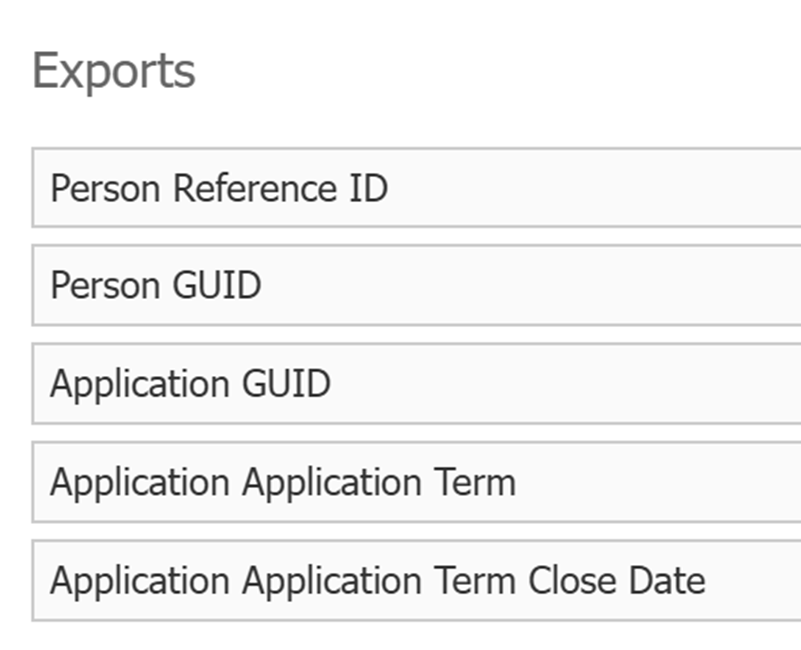
If you're triggering an update for an application record - which is most common - you will only need to use the Application query base, a Person GUID export, and an Application GUID export. (If you're triggering an update for a Person record, it is important to note that Upload Dataset requires at least two columns of data, so you'll need at least two exports.)
Any additional exports are helpful to make it easier to read the record when you're checking the row results of the upload, and are completely optional.
Filters:
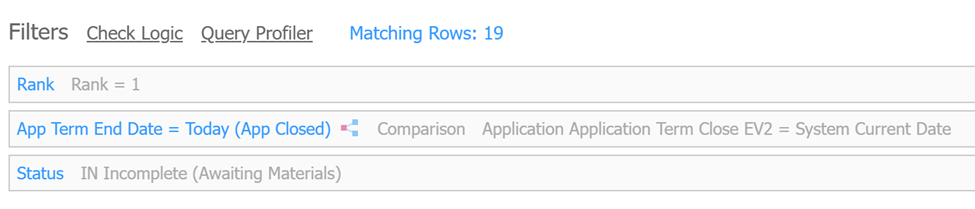
The filters should match your rule's filters, so that the query will only send results when the rule is active.
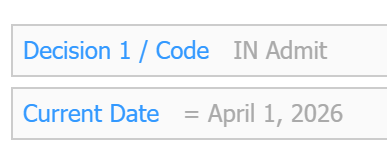
This can be more dynamic, as well:
Schedule Export Configuration:
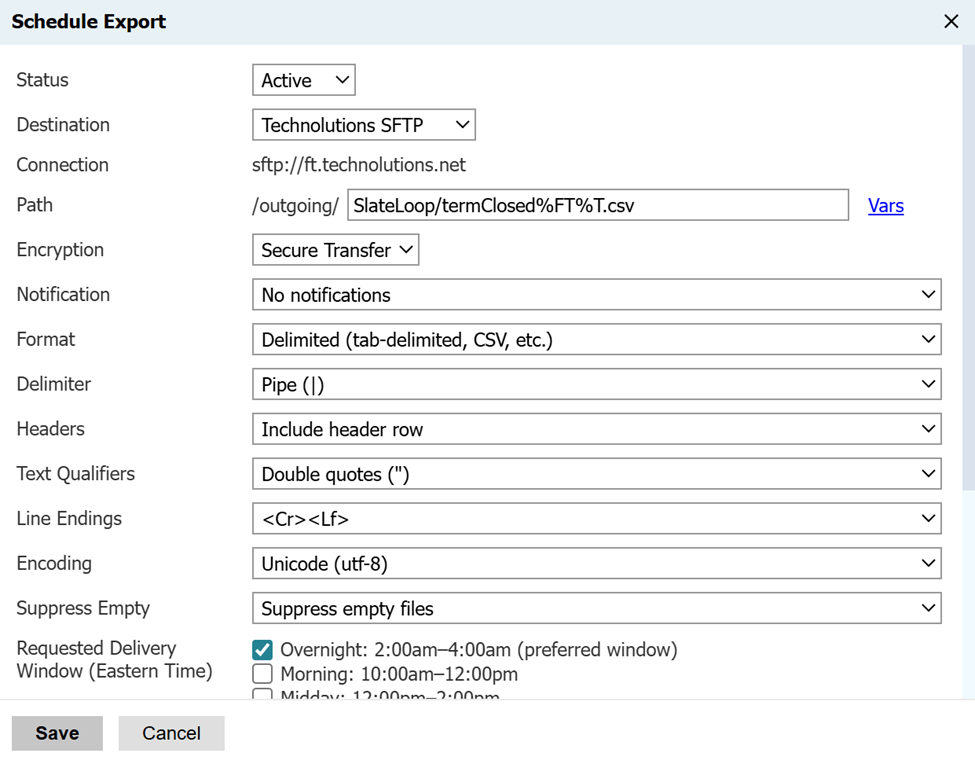
We'll use SFTP for this Slate Loop.
Click on Schedule Export and send the file to a custom Outgoing folder - but choose a common name that you can use for other Trigger Refresh exports. Make sure the file name ends in .csv, too. We recommend naming the file with timestamps, changing the delimiter to Pipe, setting the priority to low, and sending it each day of the week. Important: You will want to click "Suppress empty files".
Step 2: Building the Source Format Import
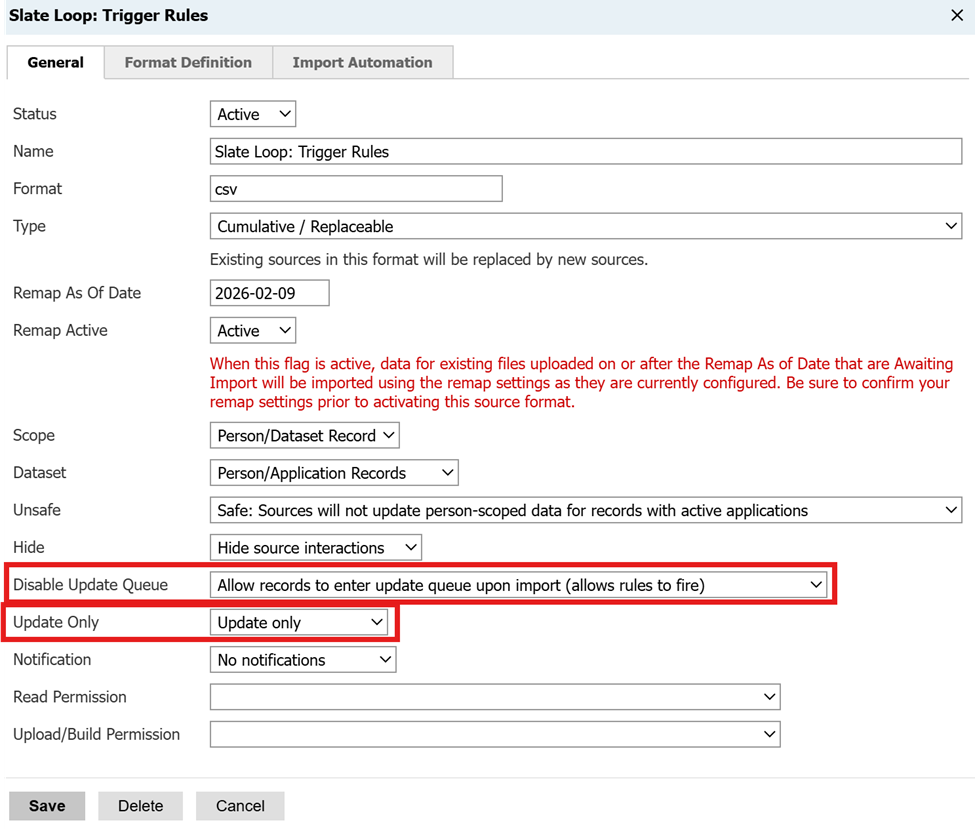
Create a new Source Format titled Slate Loop: Trigger Rules (or Refresh), and mimic the following configuration choices:
- Format = csv
- Type = Cumulative / Replaceable
- Unsafe = Safe
- Hide = Hide
- Disable Update Queue = Allow records to enter update queue upon import (very important, the key field)
- Update only = Update only
Format Definition:
This just needs to map the choices you made in schedule export. For a pipe delimitted, use this XML:
<layout b="|" h="1" t=""" />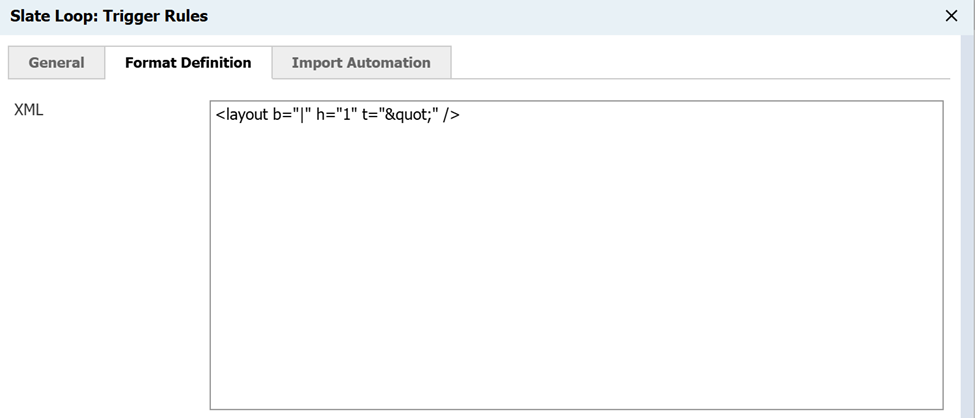
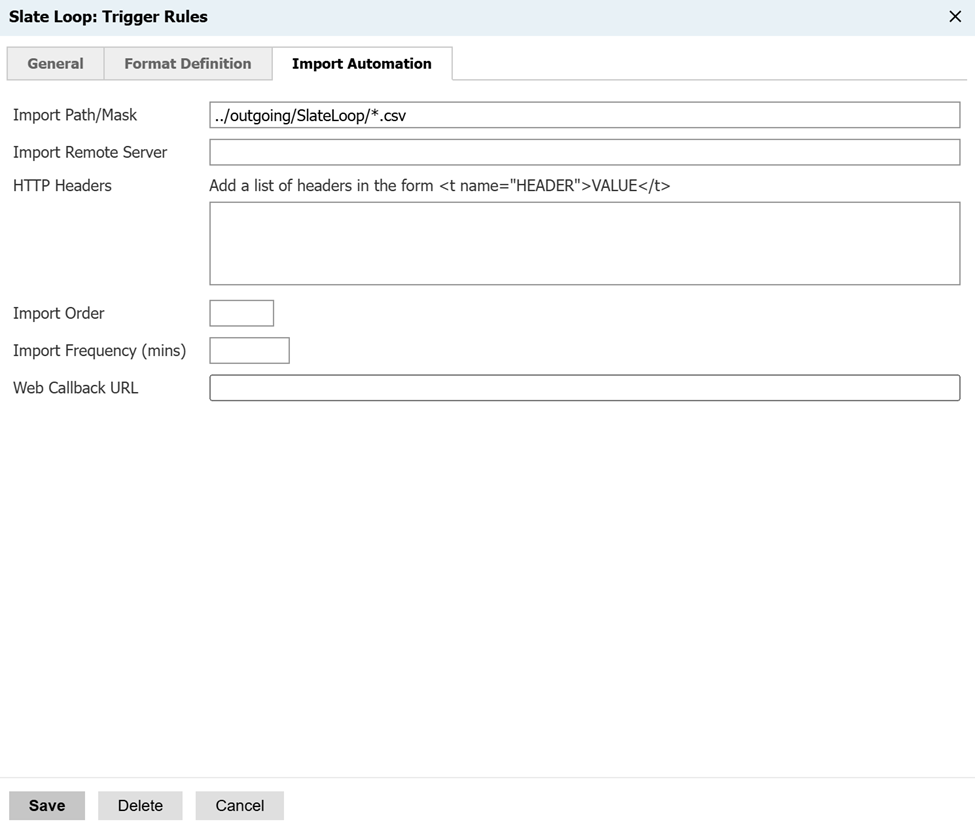
Import Automation:
We recommend writing the import path/mask to accommodate different file names for different trigger exports, so use the ../outgoing/SlateLoop/*.csv wildcard structure. The folder is the most important - and including the ../ to pull from the outgoing SFTP directory.
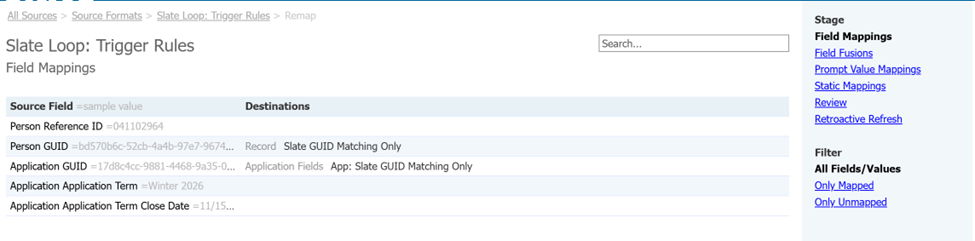
Remap Settings:
The only fields you need to map are the Person GUID and the Application GUID, which will not make any changes to the records under any circumstances - they're for matching only.
System Launch
That's it, really! It's all about having that generic Source Format that allows for "Rules to Fire", and the query with the Schedule Export designed to push a file that matches a certain filter to the right folder.
You can have any number of query exports built to import into this same Source Format.
This will allow you to write rules for populations, checklists, and other functions using date-specific language in advance and not need to manually queue up the Retroactive Refresh for the matching records.
No comments to display
No comments to display