
👩💻Adding Courses Manually using Forms
The course table is a useful tool in Slate to collect information about prior coursework, which can be useful for placement or articulation in Slate. We’ll walk through using a form to log the data in Slate.
There are technically only two required fields for adding a course:
- Institution
- Course Name
Adding Courses in Forms:
Courses are added using group/subgroup configuration in forms (and in upload dataset).
Step 1:
Define the school the courses belong to in a distinct field. Group defaults to 1.
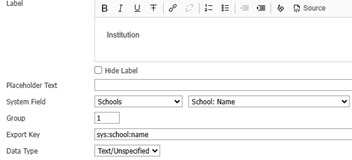
Step 2:
Add the primary course fields to collect - only Course Name is truly required.
Each course field has a Group and a Subgroup to configure.
- The Group matches to the School.
- The Subgroup refers to each School Course in that school.
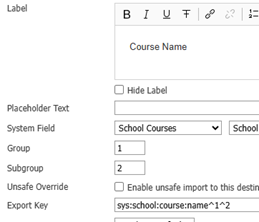
You can individually collect multiple courses with hard-wired Course Name, Course Number, Course Credits, Course Grade fields to distinct field groupings “Group 1, Subgroup 2”, “Group 1, Subgroup 3”, etc.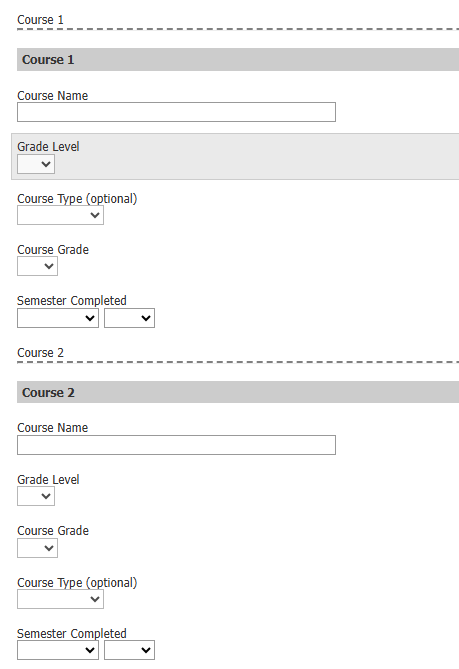
Replicate Block to Save Time:
You can use a Replicate Block to collect multiple school courses without building out the course field array multiple times. In this case, there will only be one set of Course Fields per Group – the Replicate will assign each element to distinct “Subgroups” automatically.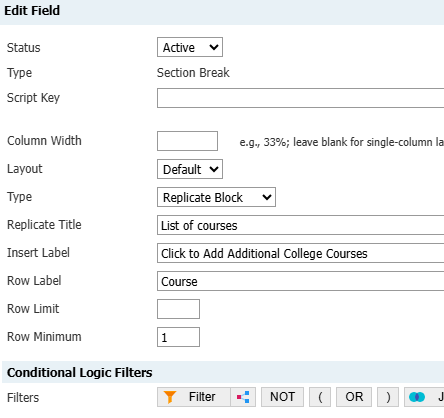
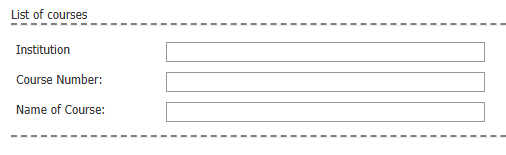
Slate will connect the course with the school listed inside of its replicate block if you include a school field on each replicate block - even for distinct schools in Course 1 vs Course 2.
However, if you wish to reduce the number of times you must enter the school name, you’d need a distinct replicate block per institution, so that Course Replicate Block 1 is associated with “Group 1 / School 1” and Course Replicate Block 2 is associated with “Group 2 / School 2”.
Reader form does not allow for the use of auto-suggest lookup inside of a replicate block.
If you’re using this data for articulation, make sure you use Course Number. Ref Courses, Transfer Credit, and Ongoing Classes for info on using Course Catalog and Course Articulation configurations. These match on the Course Number.
Hidden Course Field Configurations
Customizing Standard Fields and Prompts
Additionally, the Course Name and Course Grade fields are, by default, free text fields. However, if you add the matching prompt_key, they can be transformed into prompt choice fields, too.
- Free Text or Prompt: Course Name, Course Grade
- Only Accessible with Prompt: Course Level, Course Type, Course Grade Level, and Course Term
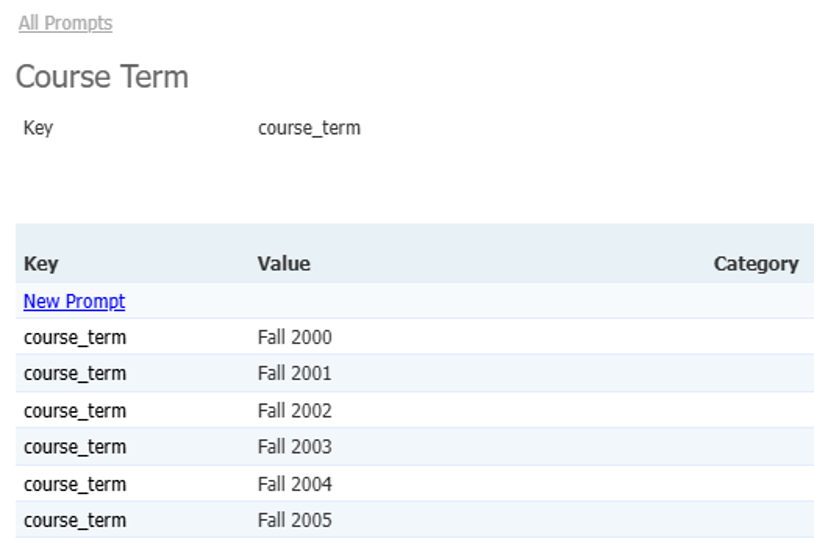
Example - course_term prompt key:
No comments to display
No comments to display