
Personalizing Application Digital Portfolio Pages
A common complaint when leveraging Slate's Digital Portfolio functionality is the inability to personlize the instructions to the individual applicant and their intended program. This article highlights a quick and easy work-around to accomplish this goal.
Step 1: Create a custom (or express) portal.
The following instructions leverage the custom portal format but can be easily adapted to express portals.
Portal scope = Application
On your portal:
- Create an application-scoped query (configurable joins please!). Do not alter the portal identity filter.
- Add exports that you will want to display on your Portfolio instructions page, such as major, program, musical instrument, etc.
- Create your view. This is the personalized content that will display for your students and should reference your merge fields. You can make these as robust or succinct as you please.
- Create a method to connect to your view and query.
- Type: GET
- Output type: Default Branding
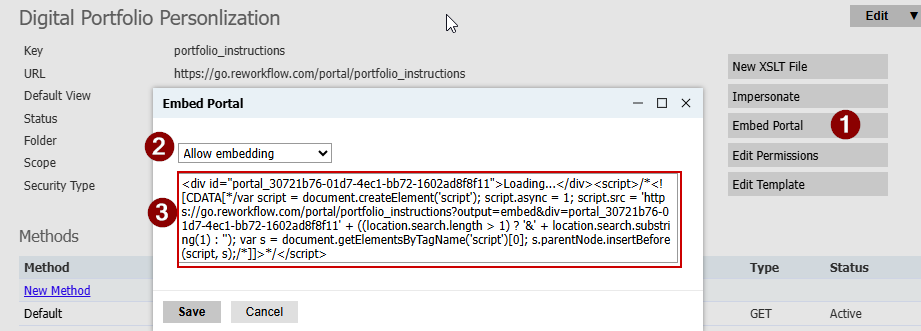
Step 2: Copy the embed code from your created portal.
- On the main portal page, click "Embed Portal"
- On the dropdown select "Allow embedding"
- You will now see a text box full of code. Copy the entire code.
Step 3: Add your portal to your Digital Portfolio instructions block.
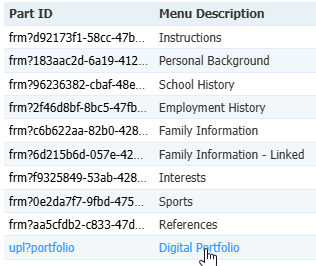
- Go to your Application Editor and select the appropriate application.
- Click on the portfolio part from your list of application pages (Part ID = upl?portfolio).
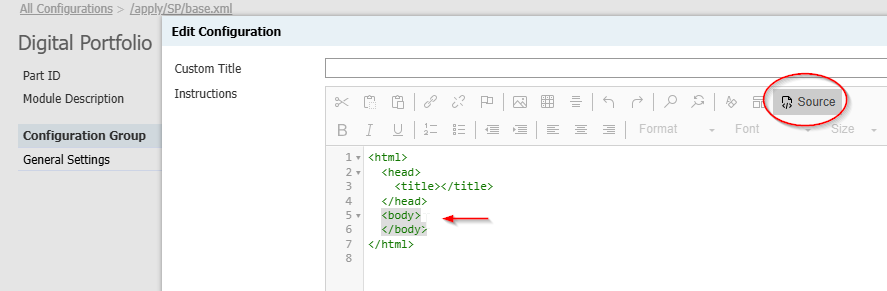
- Click on General Settings
- Click on the Source button found above the first text box under Instructions.
- Within that Source, paste your embed portal code between the <body></body> tags.
Note: You may need to repeat step 3 for every application base that utilizes Digital Portfolio in your instance.
Step 4: View and test your new personlized instructions!
Additional Tip!
Many schools find it helpful to leverage Content Blocks that can be brought into your custom portal above. This approach may save you time and frustration that you might have spent on adding liquid markup or multiple portal static content sections. For more information on adding content blocks to portals see this KB article.
No comments to display
No comments to display