
↕️ Sorting by Complex Exports
When sorting a query, Slate allows you to select any available export as a sort:
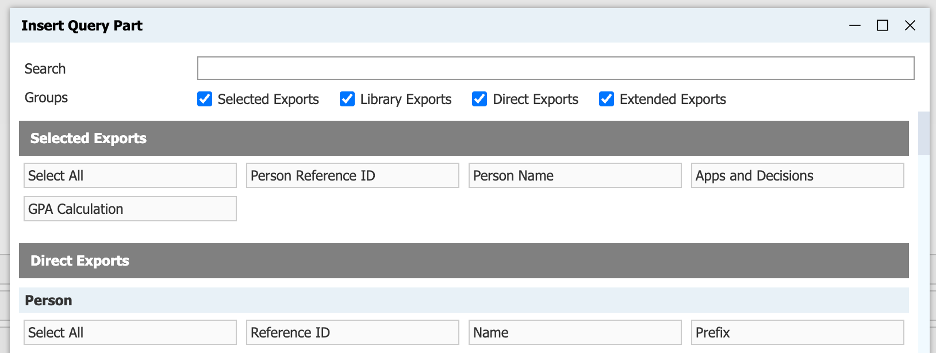
This works great for direct exports. However, for subquery exports, there are two main downsides:
- Once you add the sort, any changes to the export aren’t applied to the sort. This can be confusing, since they have the same name.
- This adds complexity, since the underlying SQL code is repeated in both places.
Luckily, we can solve both issues using a different technique. In SQL, we can actually create a sort just by specifying the column number of the relevant export. We can apply the same approach in the query using a workaround.
Note that this approach has a limitation: the sort can only be in Ascending order.
For example, if we want to sort by the "GPA Calculation” export:
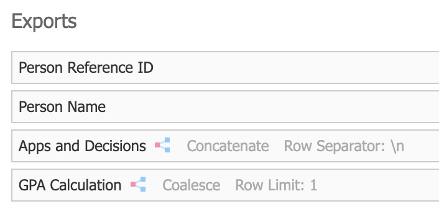
Since this is the fourth export, we would specify “4” as our sort. To do this, we first need to add a Custom SQL export. Give it a descriptive name, and enter the number “4”:
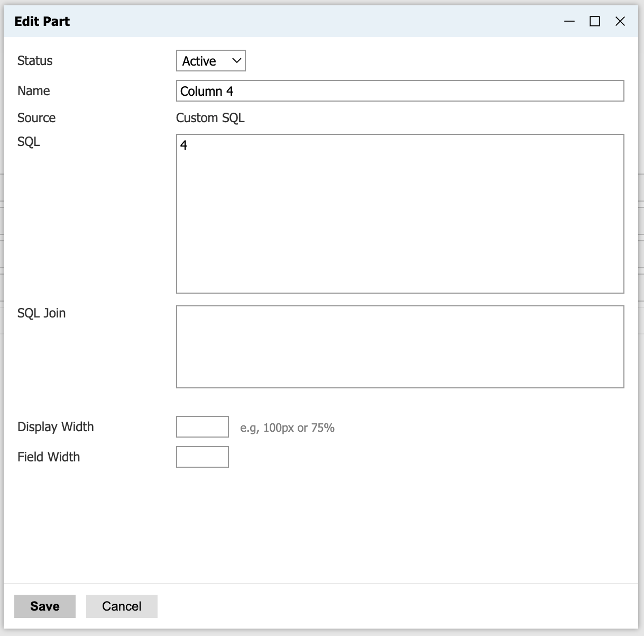
Click Save, then click the Sort button. We'll see the export we just created:
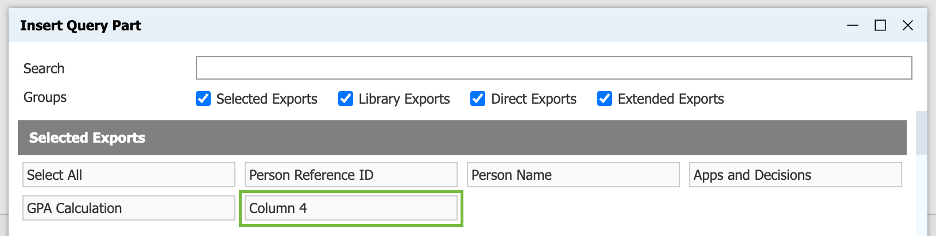
Select this and click Save. The final thing to do is delete the Custom SQL Export - the sort will remain. Here's what our query looks like now:
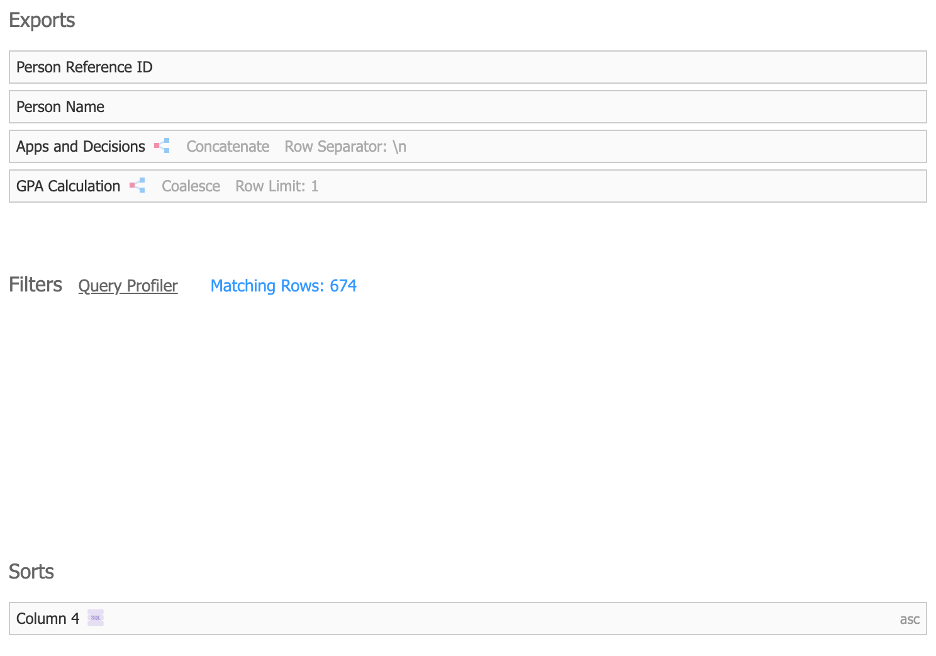
We're now sorting by the 4th column, without needing to repeat the same subquery logic inside the sort. When the export is changed, the sort criteria will automatically change with it. And we can add any other sorts that we want and arrange them in any order. (The only limitation is that we can't change this custom sort to Descending.)
No comments to display
No comments to display